 Solidus
Getting started
What is a ticker and how to give it an alias
The ticker is the code Solidus uses to recognise your asset and ask for its price. The alias is the name you want to see. They are different things, so it pays not to mix them up.
In short
- The ticker is a short code:
AAPL,IWDA.AS,BTC-EUR. - It must be one your price source recognises (Yahoo Finance by default).
- The alias only changes how it looks: charts, lists and legends.
- Changing the ticker changes where prices come from; changing the alias changes nothing else.
Before you start
What is a ticker?
It is an asset’s stock-market ID. Apple is AAPL, Nvidia is NVDA. The same security can have several, depending on the exchange: the iShares MSCI World ETF is IWDA.AS in Amsterdam. The part after the dot is the exchange. Cryptocurrencies carry the currency: BTC-EUR is Bitcoin in euros.
Where do I find mine?
Look the asset up on Yahoo Finance and copy the symbol next to its name. In Solidus you can also search by name when adding a transaction.
What is the alias?
A name of your own for that asset: “My world fund” instead of “iShares Core MSCI World UCITS ETF”. It is used in charts and legends; underneath, the ticker stays the same.
1Pick the asset when adding a transaction
In the “Asset” field type the name or paste the ticker. If the list doesn’t show it, press “Use the symbol…” to take exactly what you typed.
If the asset is already in another of your wallets, Solidus tells you: they share the market price, but each wallet has its own position.
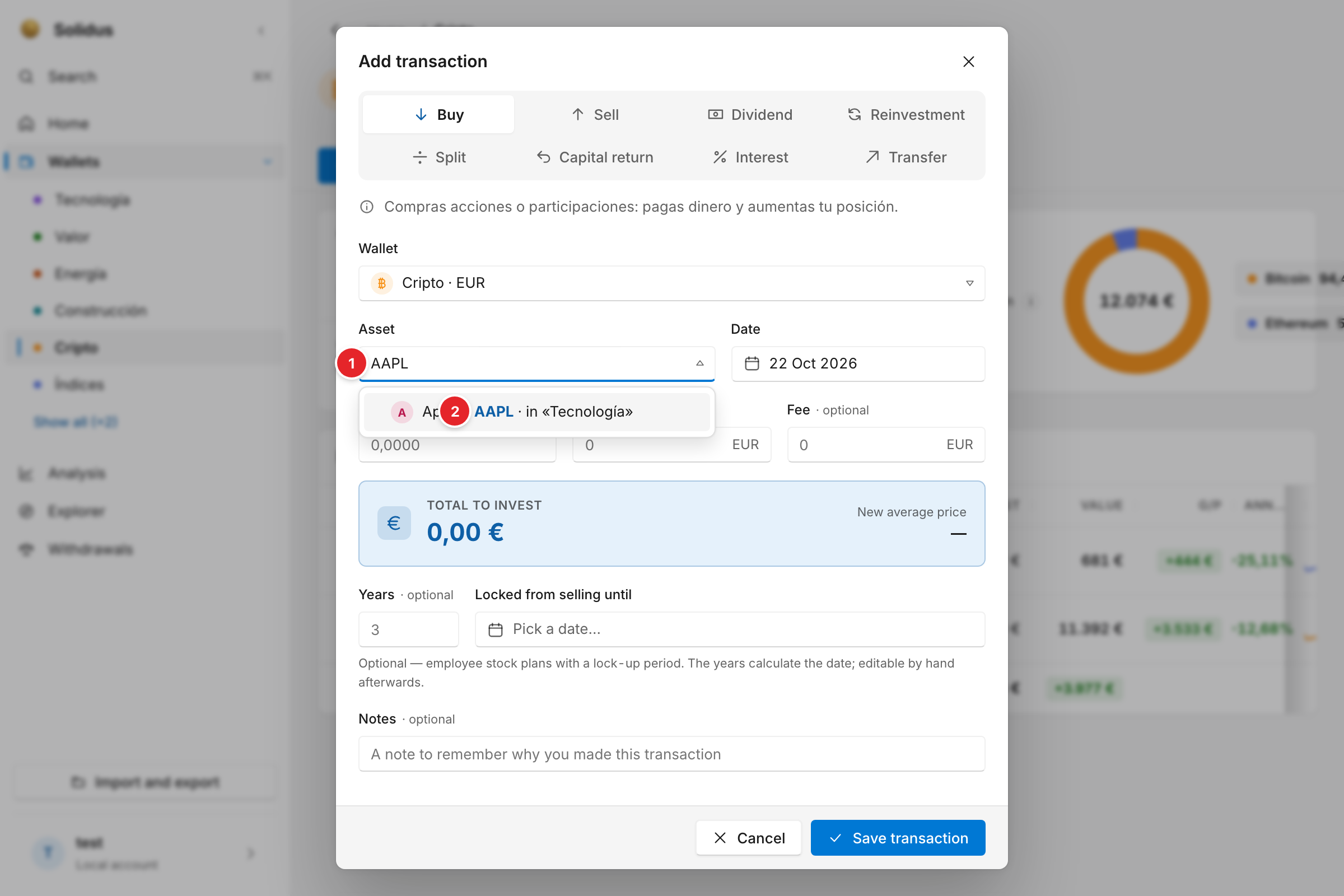
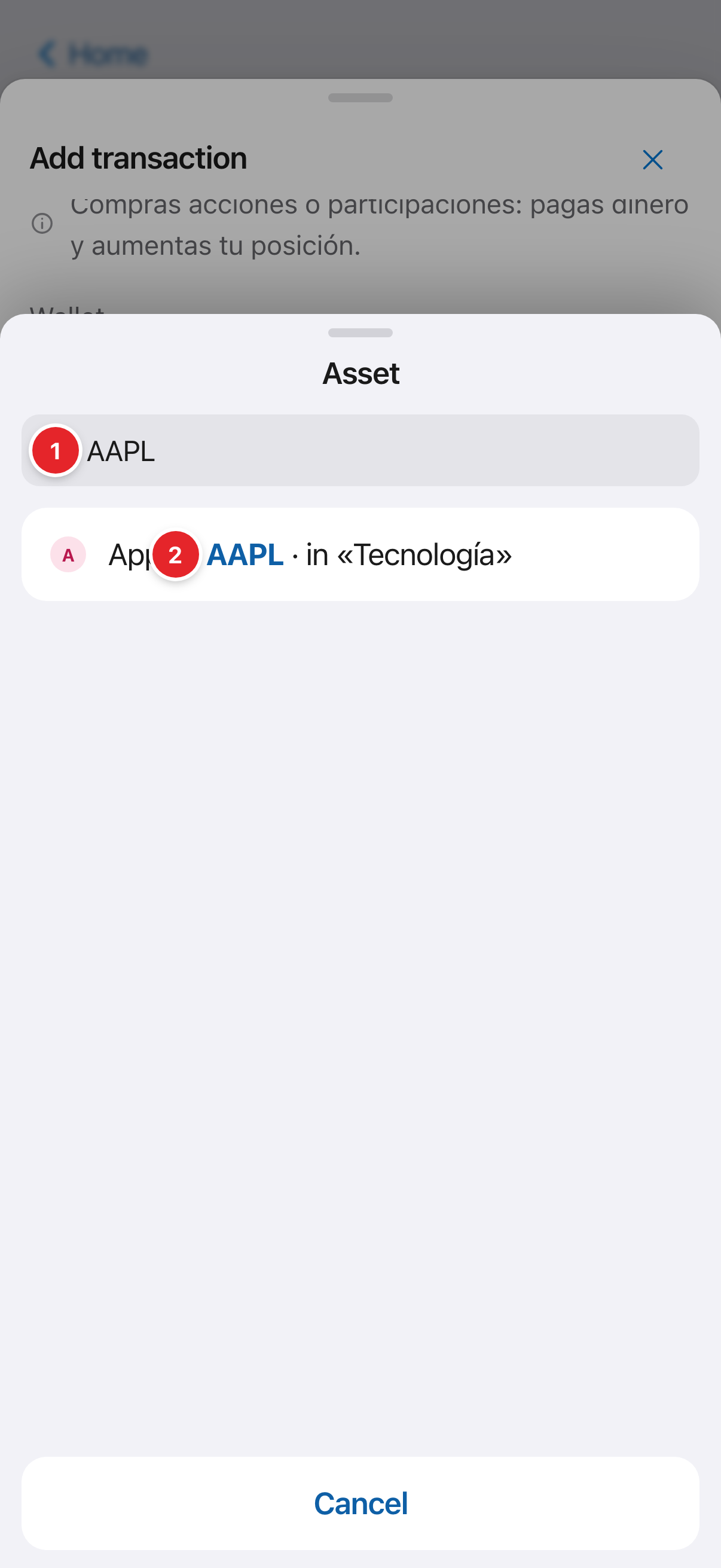
- The “Asset” field: type the name or paste the ticker.
- The result. Here it is Apple, which you already hold under “Tecnología”. If the asset isn’t listed, “Use the symbol” takes what you typed as it is.
2Give it an alias, logo and colour
In the “Positions” table open the asset’s pencil. There you can change its alias, colour, logo and investment type (stock, index fund, crypto…).
The type is global: the same asset has that type in all your wallets, and it feeds the “Distribution by nature” chart in the analysis.
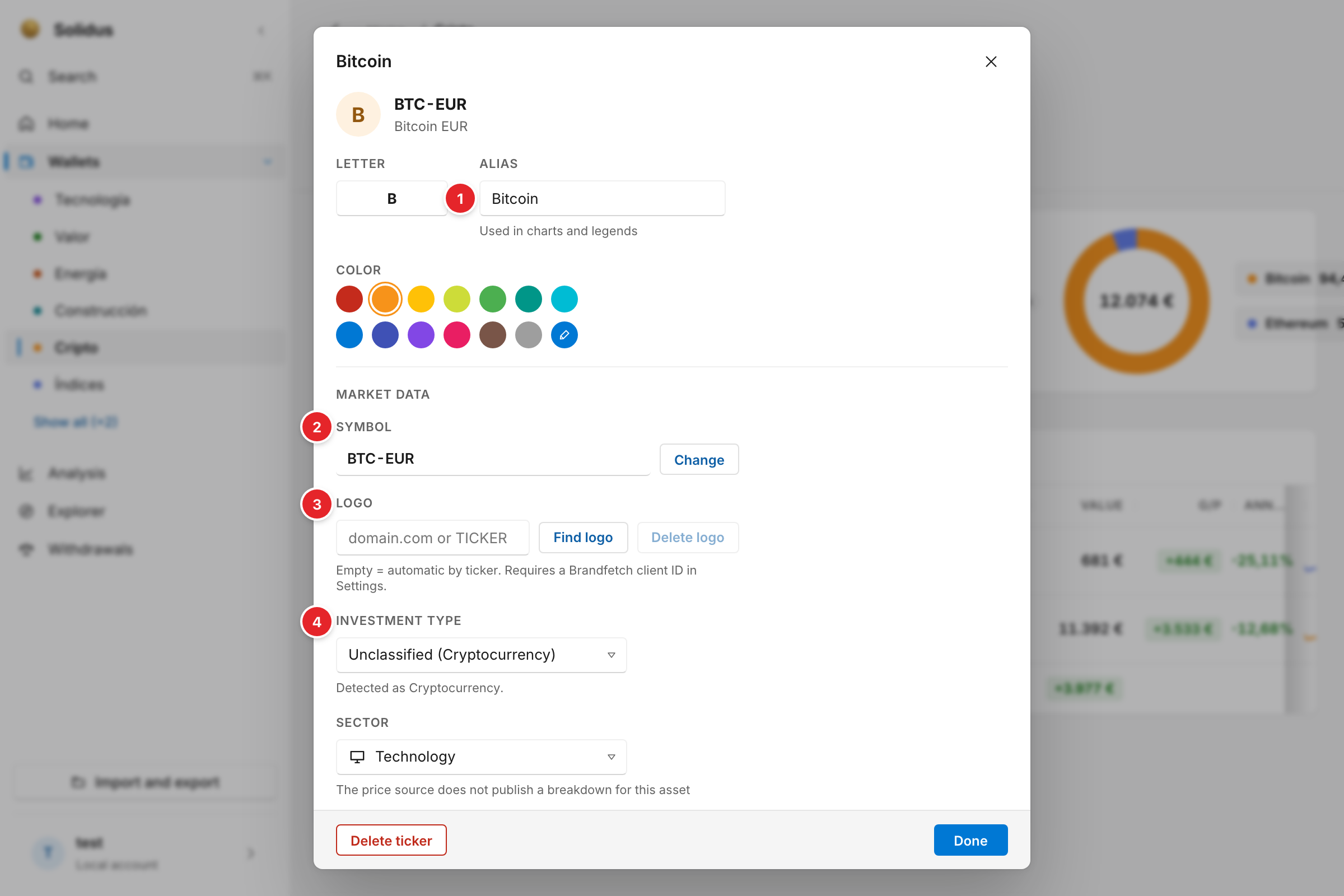
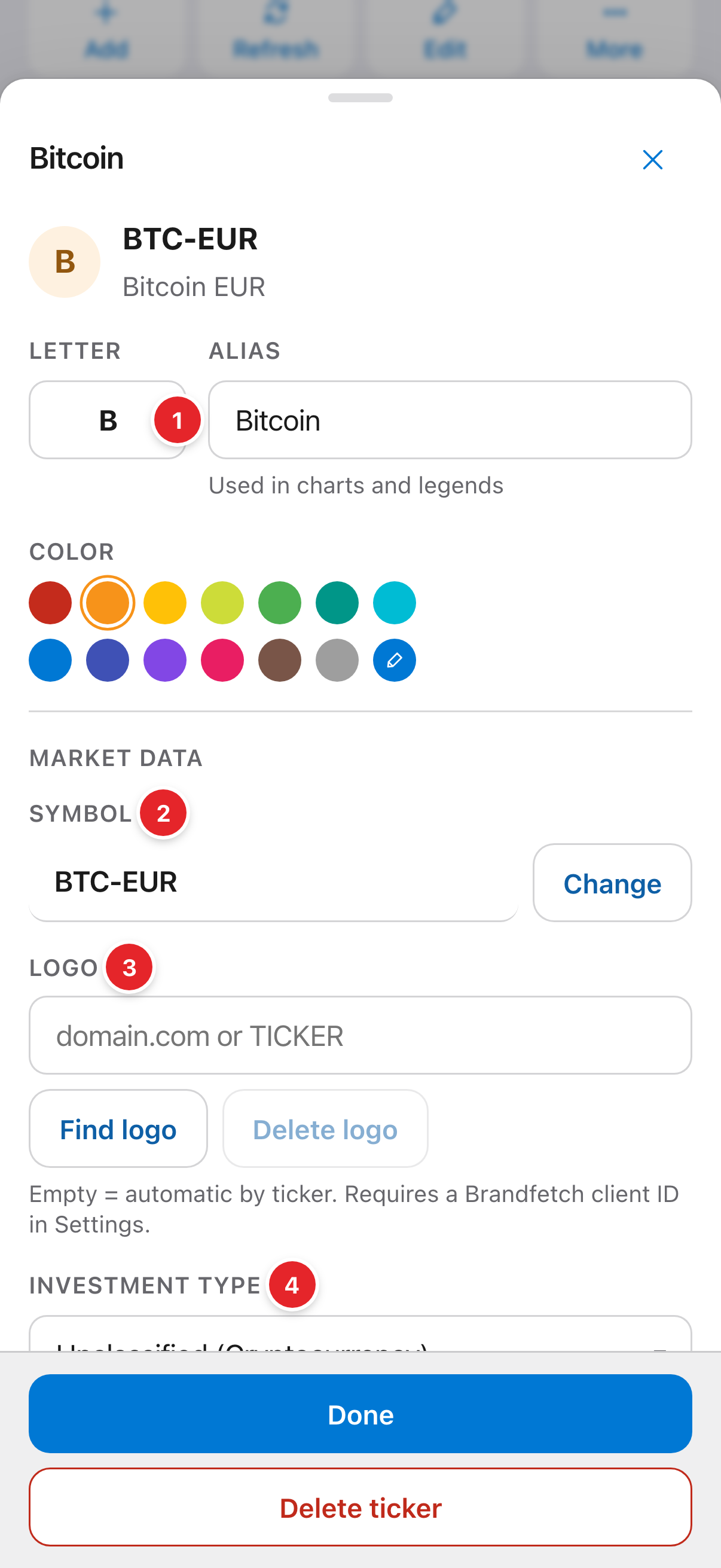
- “Alias”: the name you want to see.
- “Symbol”: the ticker used to download prices. Change it only if your price source recognises the new one.
- “Logo”: downloaded automatically if you set your free Brandfetch client ID in Settings.
- “Investment type”: stock, index fund, crypto… for the allocation analysis.
Screenshots are of the real app with sample data, not anyone’s own.
Common problems
My asset has no price
It is almost always the ticker: check it exists exactly like that on Yahoo Finance. If it really has no quote (a pension plan, a private product), use “Manual price”: the asset’s pencil → “Manual price” and set its value yourself.
I changed the ticker and price downloads broke
History and transactions move to the new symbol, but if your source doesn’t recognise it there will be no quote. Put the previous one back.
Next step
Adding transactions: buys, sells, dividends and more → · All guides